

In addition to the standard alphabetical keyboard, Remote Mouse provides a Shortcut Bar and a Numeric & Function Keypad. Together, these three input methods cover the full range of shortcuts and key combinations available on a physical keyboard, making it easier to control your computer efficiently from your phone.
The examples below show how Remote Mouse keyboard shortcuts work in real use.
The Shortcut Bar
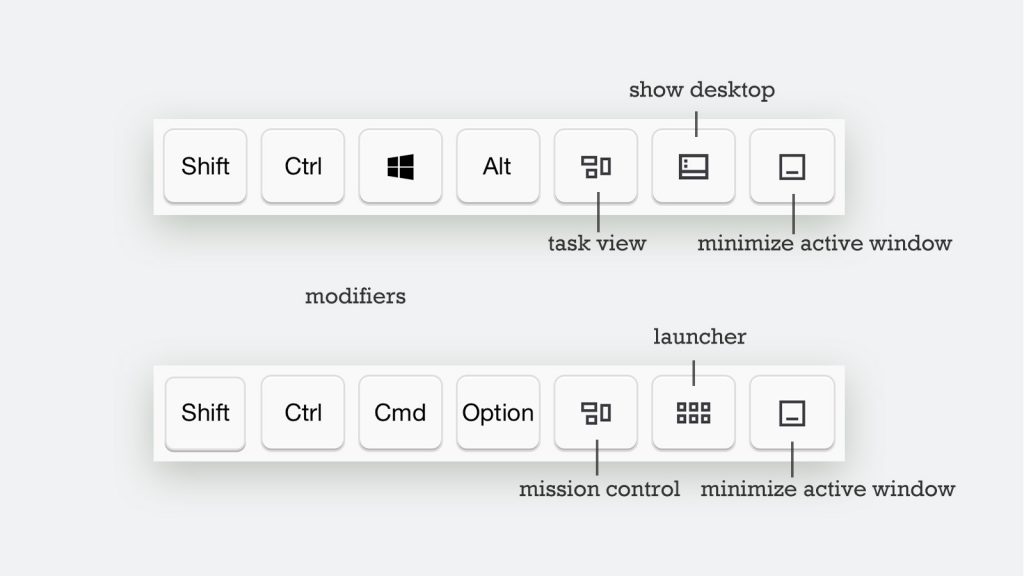
The Shortcut Bar can be used together with other keyboards and special input panels.
It automatically adapts to the connected computer’s operating system, displaying the appropriate keys for Windows or macOS.
- The four keys on the left are modifier keys
- The three keys on the right provide quick controls
Modifier keys can be combined with either the English keyboard or the Numeric & Function Keypad to send shortcut commands.
Sending Keyboard Shortcuts
Because mobile screens do not allow several keys to be pressed simultaneously like a physical keyboard, shortcut combinations are entered step by step.
Tap one or more modifier keys to activate them, then tap a regular key to send the keyboard shortcut. Once the shortcut is sent, all activated modifier keys are automatically released.
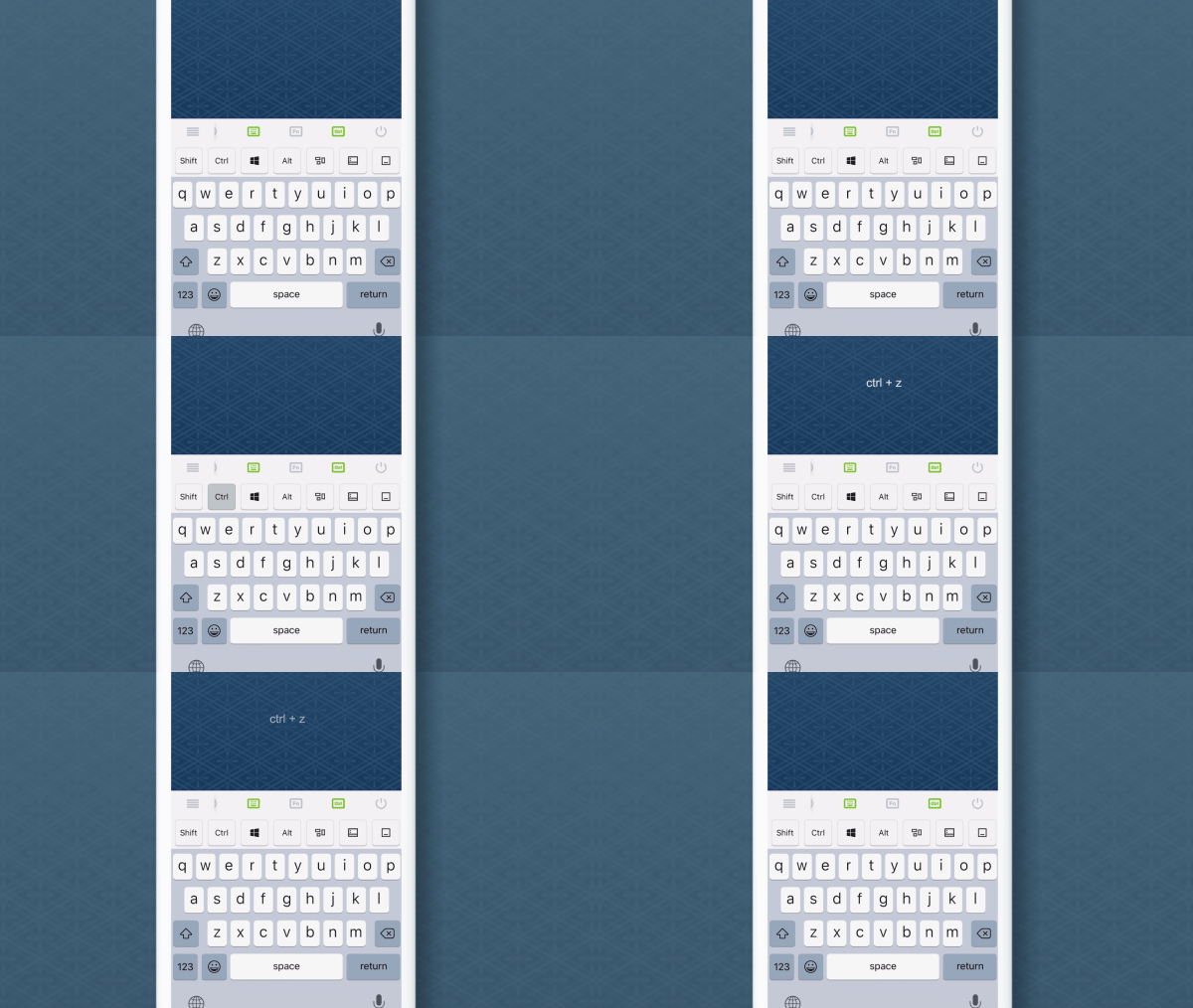
Tap Ctrl first, then tap Z
Keeping Modifier Keys Active
Long-press a modifier key to keep it active. It will remain active after you press a regular key, allowing you to send multiple shortcuts using the same modifier. You can also keep multiple modifier keys active at the same time.
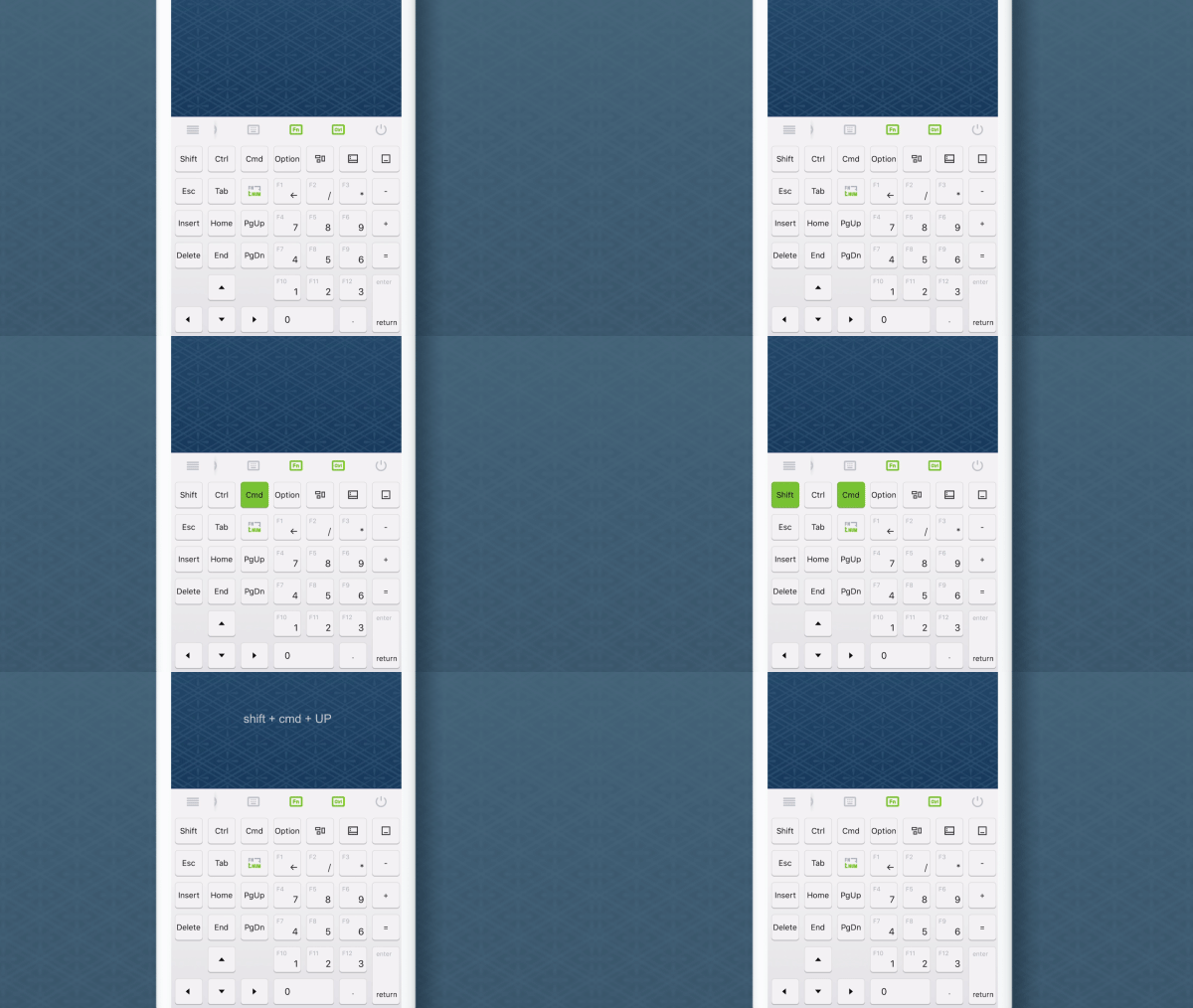
Long-press Shift, long-press Command, then tap Up Arrow.
Sending a Modifier Key by Itself
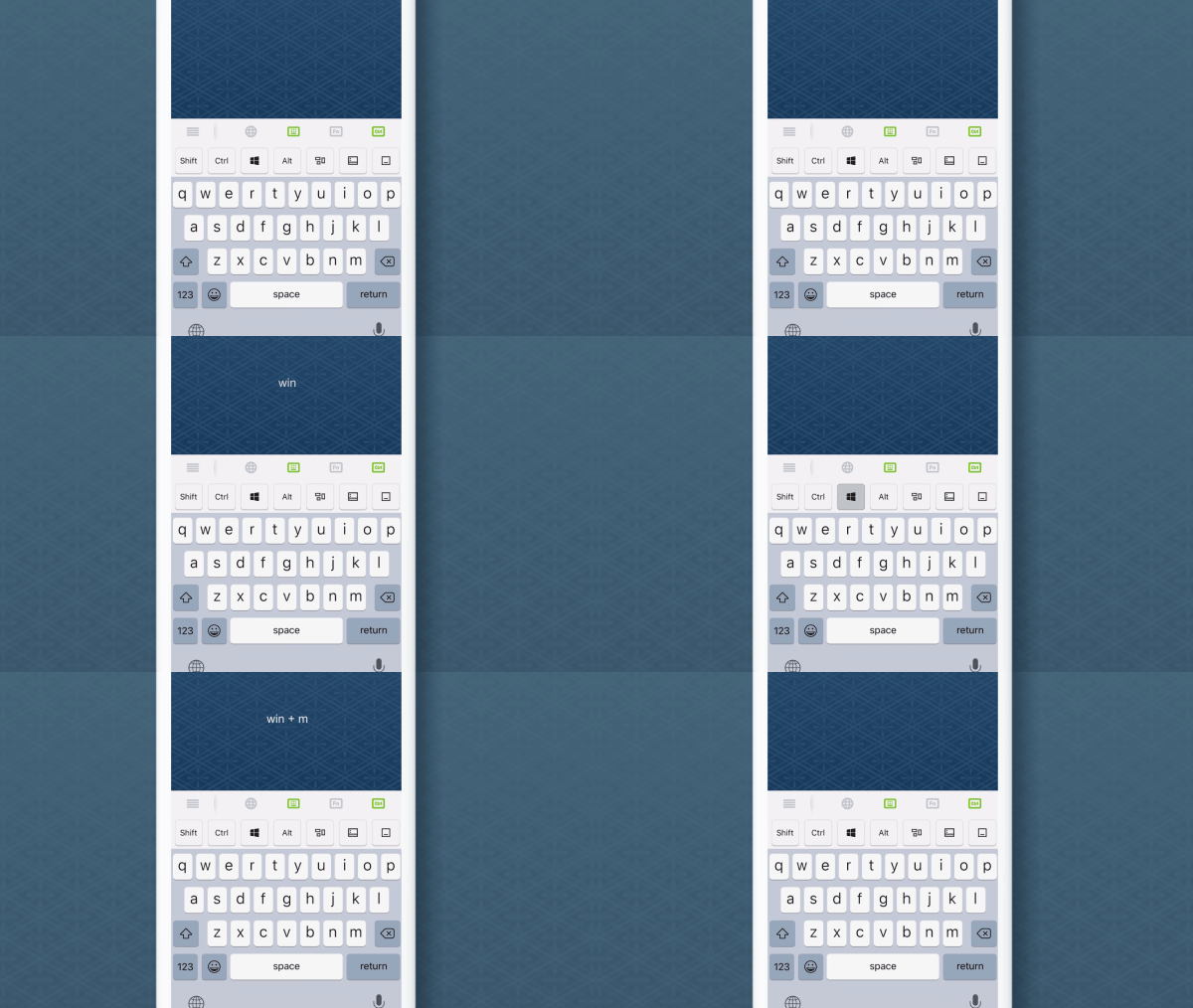
To send modifier keys directly, open Settings and turn on Send Modifiers on Tap. This option is turned off by default.
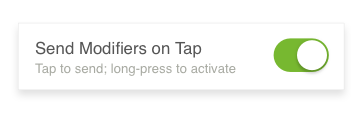
When this option is enabled:
- Tap a modifier key to send it directly to your computer.
- Long-press a modifier key once to activate it for the next regular key.
- Long-press the same modifier key twice to keep it active for multiple key presses.
Canceling Modifier Keys
To cancel an active modifier key, tap it again.