Remote Mouse on Apple Watch: Simple Controls from Your Wrist

July 26, 2026 in Tips & Tricks

Your iPhone can already control your computer with Remote Mouse. But sometimes your phone is charging, sitting across the room, or simply inconvenient to reach. Remote Mouse on Apple Watch gives you a few useful controls right from your wrist.

What You Can Do

Control Media and Presentations

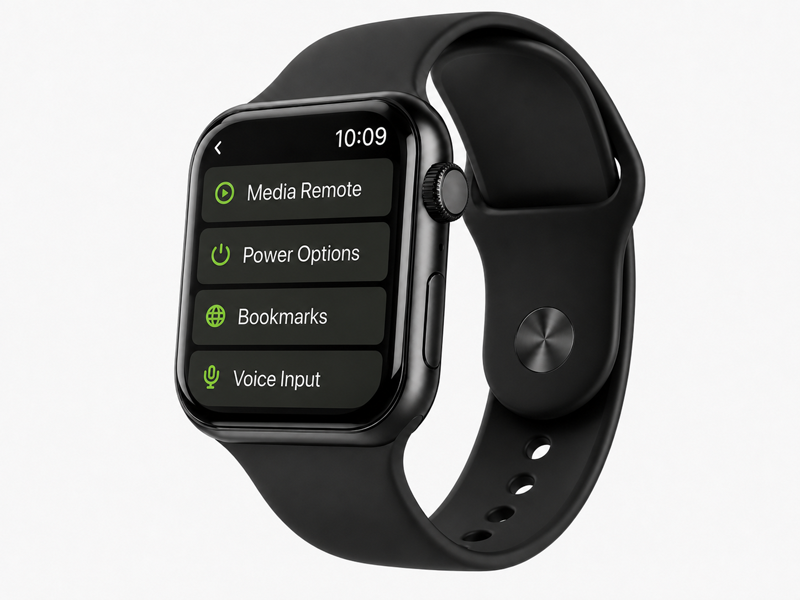
The Media Remote lets you pause or resume playback, skip forward or back, and adjust the volume on your computer. It can also handle the basic controls needed for many presentations, so you may not need a separate presentation remote.

Open Saved Websites

Browser Bookmarks let you open a website on your computer directly from your Apple Watch.

First, add the websites you use often to the bookmarks in Web Remote on your iPhone. You can then open a workout video, recipe, playlist, presentation page, tutorial, or any other saved website from your watch with a tap.

Shut Down Your Computer

You can also shut down your computer remotely. This is especially convenient when you are about to leave, have already moved away from your desk, or are in bed and do not want to get up again.
When It Comes in Handy

During a Workout

This is one of my own most common uses.

When I follow a workout video at home, I sometimes fall behind or need a moment to catch my breath. Instead of walking back to the computer or looking for my phone, I can pause the video from my wrist, replay the movement, and continue when I am ready.

It is a small convenience, but when you are exercising or moving around frequently, a compact remote on your wrist can be much quicker and easier to use than your phone.

When Your Hands Are Busy

The watch remote is also useful when you are cooking, cleaning, doing crafts, or working on a repair project. You might be following a recipe or tutorial, or simply listening to music or a podcast. When you need to pause, replay a step, or continue, the controls are already on your wrist. You do not need to stop what you are doing and walk back to the computer.

When You Are Away from the Computer

During a presentation, you can move through slides or control a video while standing away from your computer.

At a party or family gathering, you can control music and videos while moving around the room instead of carrying your phone everywhere.

The Apple Watch does not replace the full Remote Mouse app, but it works well for quick controls when you are not sitting at your desk.

A Few Extra Options

Remote Mouse also supports voice and handwriting input on Apple Watch. It is best suited to short searches, a few words, or a quick command rather than long text.

The first time you use the watch app, you need to connect to your computer through the iPhone app. After the initial setup, the watch can connect directly to your computer for everyday use, but make sure your iPhone is still nearby.

Remote Mouse on Apple Watch is designed for those small moments when reaching for your phone or returning to your computer feels like one step too many.
A Simpler Way to Use Remote Mouse Shortcuts

July 23, 2026 in Tips & Tricks, What's New

Shortcuts are meant to be fast. Therefore, we’ve redesigned how they work to make them simpler and more intuitive, with fewer rules to remember.

A simpler way to use shortcuts

Previously, some multi-key shortcuts required long presses to activate each modifier. This is no longer needed, everything now follows the same simple interaction: tap to combine, long press to keep it active.

  • Tap modifier keys (Ctrl, Shift, Alt…) to combine them
  • Tap a regular key (letters, numbers, or keys like Esc and Tab) to execute the shortcut
  • Long press a modifier to keep it active across multiple actions

Works with your keyboard layout

Shortcuts now work with Latin-based keyboard layouts, just like on your computer. No need to switch to an English keyboard. Everything works the way you already expect.

Shortcuts in everyday use

Editing text

When working with text, actions often come in chains:

  • Ctrl + A → Ctrl + C → Ctrl + V

Now, you can simply:

  • Long Press Ctrl, then tap A, C, V

No need to re-activate the modifier each time.

Browsing the web

When navigating between tabs:

  • Hold Ctrl, tap T to open new tabs
  • Tap W to close them

The interaction stays consistent.

Quick access to system controls

Shortcuts also make it faster to trigger common system actions:

On Windows:

  • Win + D → Show desktop
  • Win + Tab → Open Task View
  • Alt + Tab → Switch between apps

On macOS:

  • Cmd + Tab → Switch between apps
  • Cmd + Space → Open Spotlight
  • Ctrl + ↑ → Mission Control

With modifiers staying active, these actions feel immediate and continuous.

Send modifier keys directly

The latest update adds a new Send Modifiers on Tap option in Settings.

By default, tapping a modifier activates it for the next shortcut, while a long press keeps it active across multiple key presses. When Send Modifiers on Tap is enabled:

  • Tap a modifier to send it directly.
  • Long press it once to use it with the next regular key.
  • Long press it twice to keep it active for multiple key presses.

This makes it possible to send keys such as the Windows key by themselves, while still supporting keyboard shortcuts.

Specialty Control Panels for Faster Computer Control

March 5, 2020 in Tips & Tricks

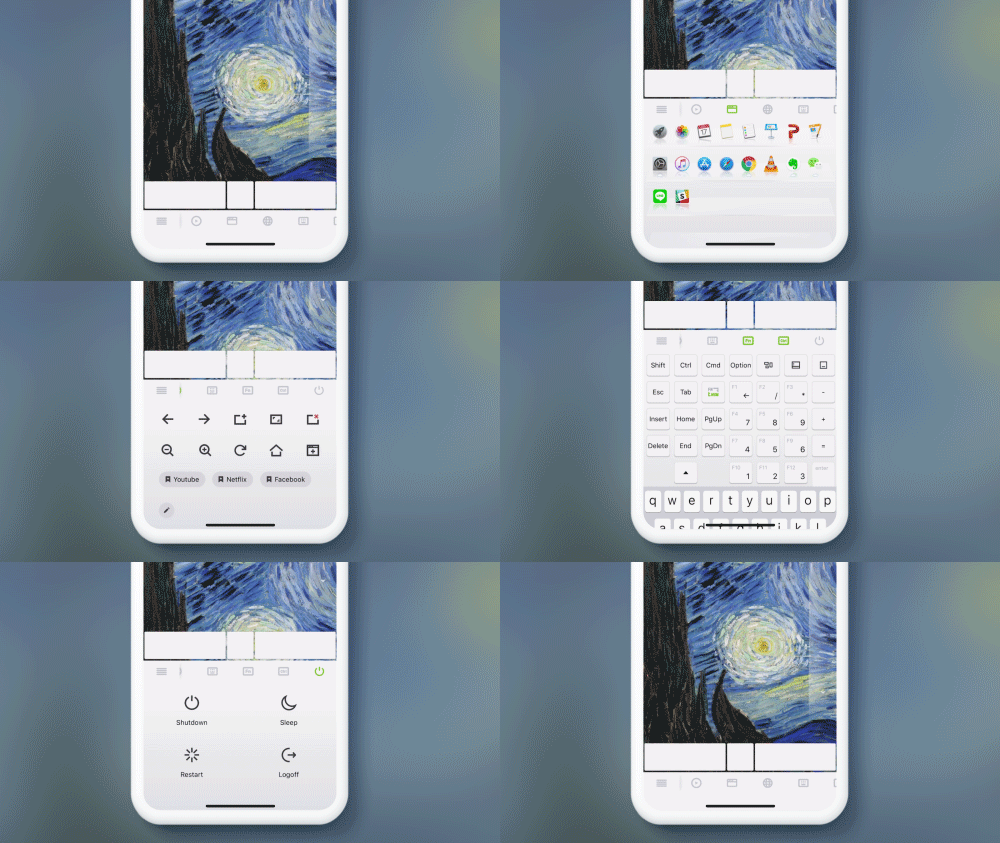
Controlling a computer with a virtual remote can be a hassle when compared to using a physical mouse and keyboard. This is where Remote Mouse’s specialty control panels come in. These panels are designed to give you quick access to common actions that would otherwise require multiple steps, making computer control on small screens faster and more practical.

One-Tap to Switch, Show, or Hide Panels

Tap an icon on the panel control bar to show a panel. Tap it again to hide it.

The panel control bar is fully slidable, allowing each icon to be large enough to match the size of your fingertips. This makes it easier to perform actions with a single tap, such as shutting down your computer. The sliding design also leaves room for additional panels in the future, ensuring the interface can evolve without becoming crowded.

Customize Your Panel Order

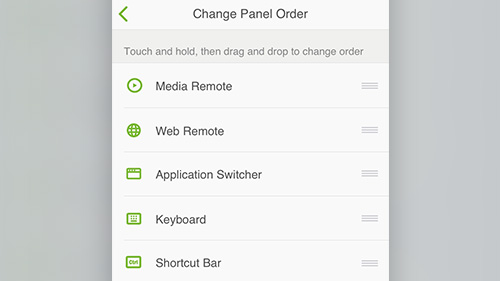
Tap the menu icon on the panel control bar, go to Settings, then select “Change panel order”.

With the latest version of Remote Mouse, you can rearrange the specialty panels and customize your interface to your liking. By placing frequently used panels within easy reach, you can create a more efficient and personalized control layout, tailored to how you use your computer.

How to Use Keyboard Shortcuts in Remote Mouse

February 24, 2020 in Tips & Tricks

In addition to the standard alphabetical keyboard, Remote Mouse provides a Shortcut Bar and a Numeric & Function Keypad. Together, these three input methods cover the full range of shortcuts and key combinations available on a physical keyboard, making it easier to control your computer efficiently from your phone.

The examples below show how Remote Mouse keyboard shortcuts work in real use.

The Shortcut Bar

Shortcut Bar when connecting to Windows or macOS

The Shortcut Bar can be used together with other keyboards and special input panels.
It automatically adapts to the connected computer’s operating system, displaying the appropriate keys for Windows or macOS.

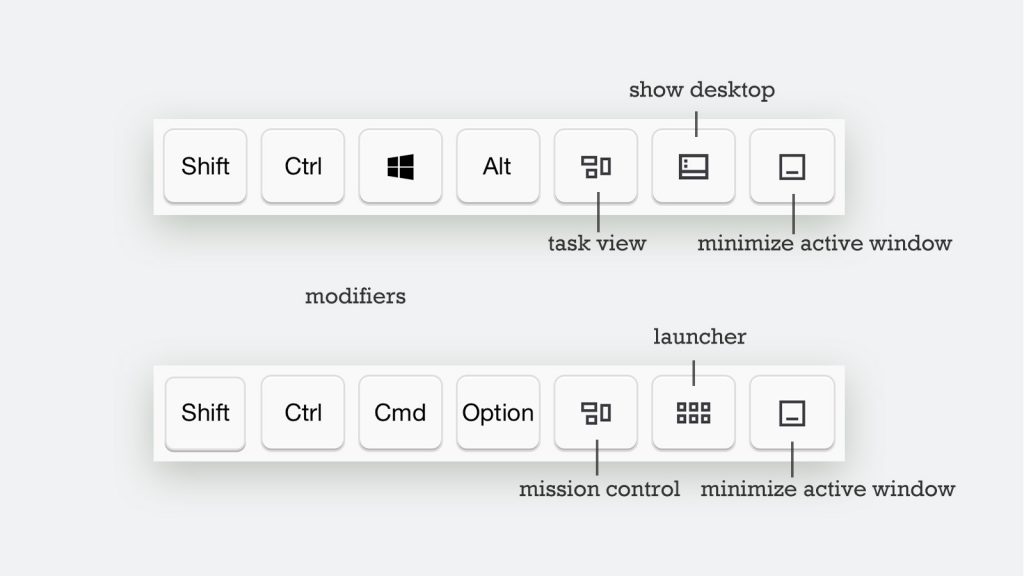
  • The four keys on the left are modifier keys
  • The three keys on the right provide quick controls

Modifier keys can be combined with either the English keyboard or the Numeric & Function Keypad to send shortcut commands.

Sending Keyboard Shortcuts

Because mobile screens do not allow several keys to be pressed simultaneously like a physical keyboard, shortcut combinations are entered step by step.

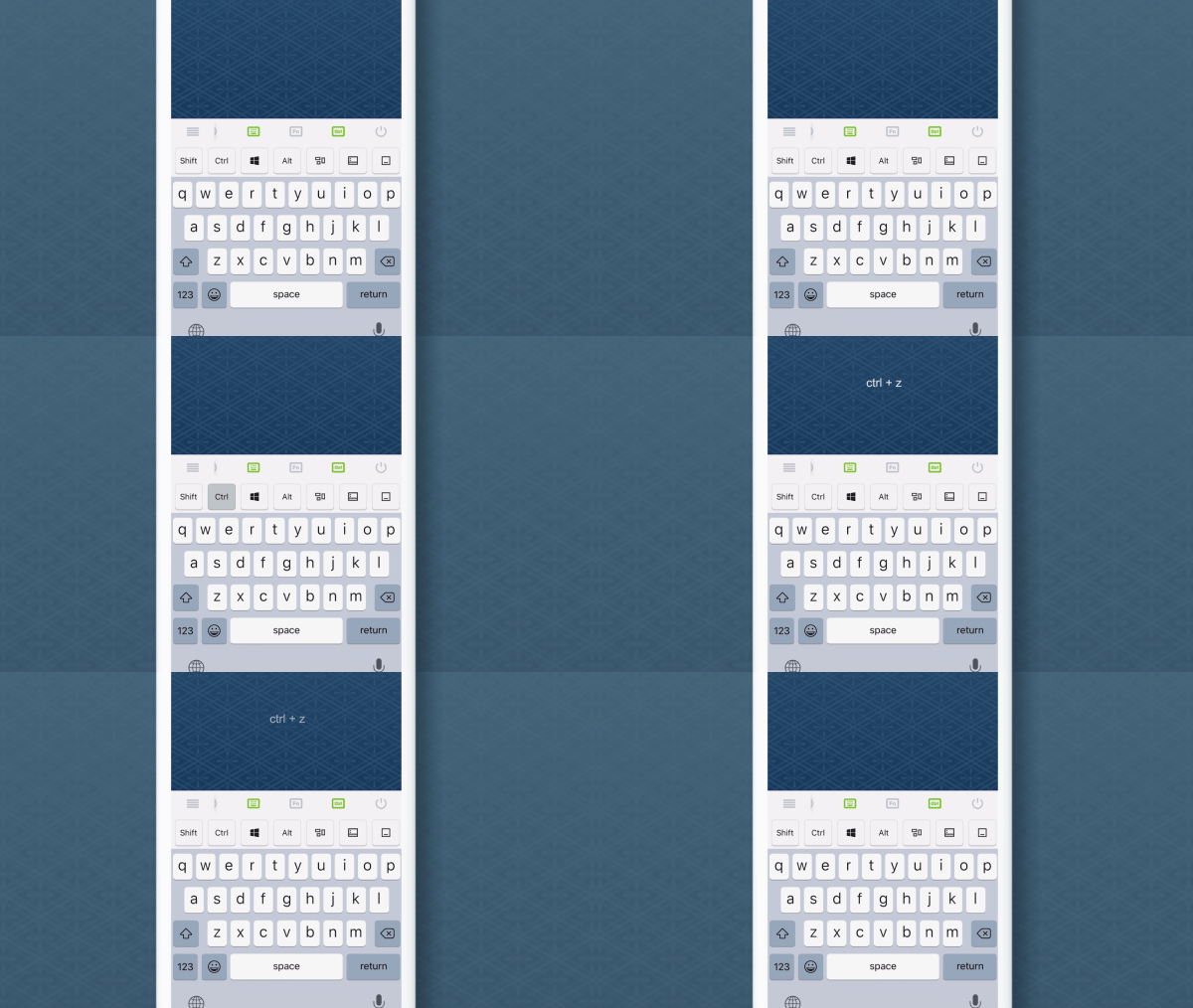
Tap one or more modifier keys to activate them, then tap a regular key to send the keyboard shortcut. Once the shortcut is sent, all activated modifier keys are automatically released.

Example: Ctrl-Z
Example: Ctrl-Z
Tap Ctrl first, then tap Z
Continue reading »

Touchpad Gestures Made Easy on Your Phone

February 11, 2020 in Tips & Tricks

Your phone’s touch screen can handle almost everything a mouse does. With Remote Mouse, touchpad gestures let you control your computer naturally, without relying on on-screen buttons.

Below is a quick guide to the most common touchpad gestures and what they do.

Basic Cursor Control

Move your finger on the touchpad to control the cursor. Tap once to perform a left click.

Move & Left Click
Continue reading »

Remote Voice Typing: Fast, Natural Text Input from Your Phone

December 23, 2019 in Tips & Tricks

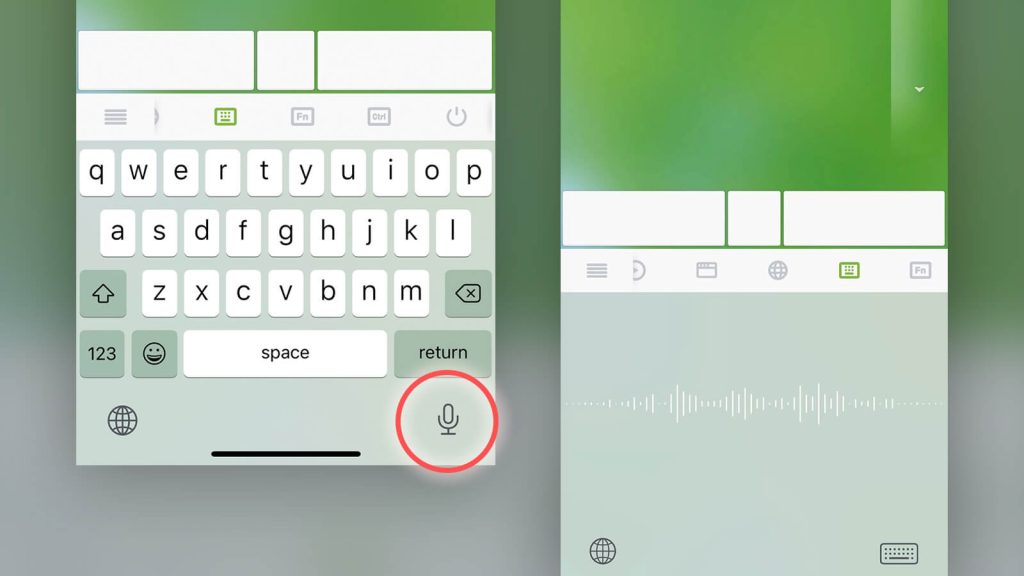
Remote Voice Typing is a convenient and surprisingly powerful way to enter text on your computer using your phone’s microphone. Instead of typing long paragraphs on a physical keyboard, you can simply speak naturally and let your phone handle the transcription in real time.

To get started, tap the voice input icon on the Remote Mouse keyboard and begin speaking into your phone. Your spoken words will instantly appear as text on your computer, making it ideal for quick notes, longer messages, or hands-free input.

Continue reading »