Remote Mouse on Apple Watch: Simple Controls from Your Wrist

July 26, 2026 in Tips & Tricks

Your iPhone can already control your computer with Remote Mouse. But sometimes your phone is charging, sitting across the room, or simply inconvenient to reach. Remote Mouse on Apple Watch gives you a few useful controls right from your wrist.

What You Can Do

Control Media and Presentations

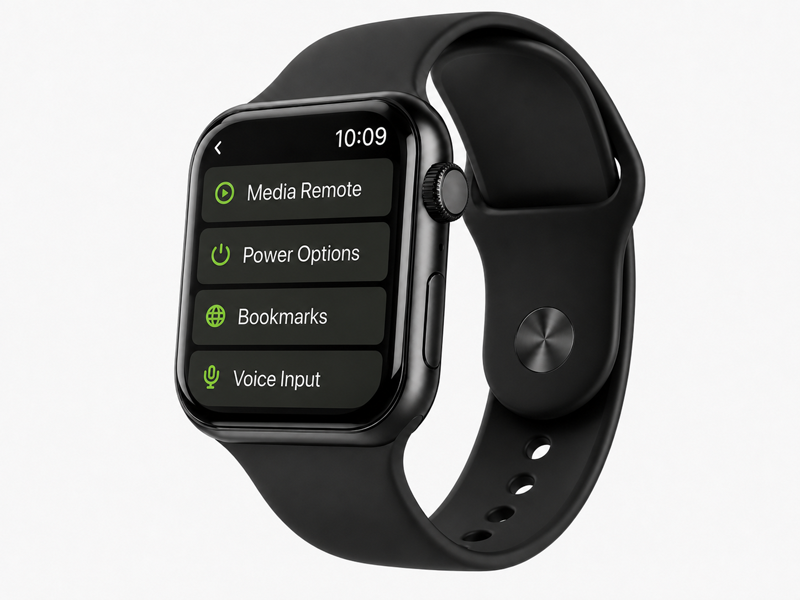
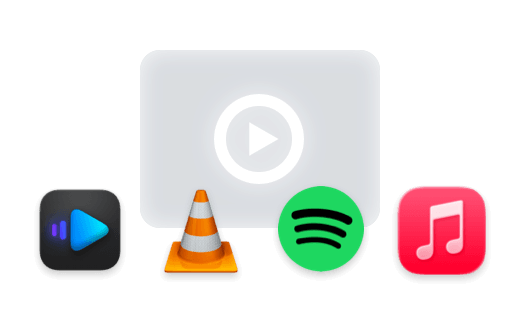
The Media Remote lets you pause or resume playback, skip forward or back, and adjust the volume on your computer. It can also handle the basic controls needed for many presentations, so you may not need a separate presentation remote.

Open Saved Websites

Browser Bookmarks let you open a website on your computer directly from your Apple Watch.

First, add the websites you use often to the bookmarks in Web Remote on your iPhone. You can then open a workout video, recipe, playlist, presentation page, tutorial, or any other saved website from your watch with a tap.

Shut Down Your Computer

You can also shut down your computer remotely. This is especially convenient when you are about to leave, have already moved away from your desk, or are in bed and do not want to get up again.

When It Comes in Handy

During a Workout

This is one of my own most common uses.

When I follow a workout video at home, I sometimes fall behind or need a moment to catch my breath. Instead of walking back to the computer or looking for my phone, I can pause the video from my wrist, replay the movement, and continue when I am ready.

It is a small convenience, but when you are exercising or moving around frequently, a compact remote on your wrist can be much quicker and easier to use than your phone.

When Your Hands Are Busy

The watch remote is also useful when you are cooking, cleaning, doing crafts, or working on a repair project. You might be following a recipe or tutorial, or simply listening to music or a podcast. When you need to pause, replay a step, or continue, the controls are already on your wrist. You do not need to stop what you are doing and walk back to the computer.

When You Are Away from the Computer

During a presentation, you can move through slides or control a video while standing away from your computer.

At a party or family gathering, you can control music and videos while moving around the room instead of carrying your phone everywhere.

The Apple Watch does not replace the full Remote Mouse app, but it works well for quick controls when you are not sitting at your desk.

A Few Extra Options

Remote Mouse also supports voice and handwriting input on Apple Watch. It is best suited to short searches, a few words, or a quick command rather than long text.

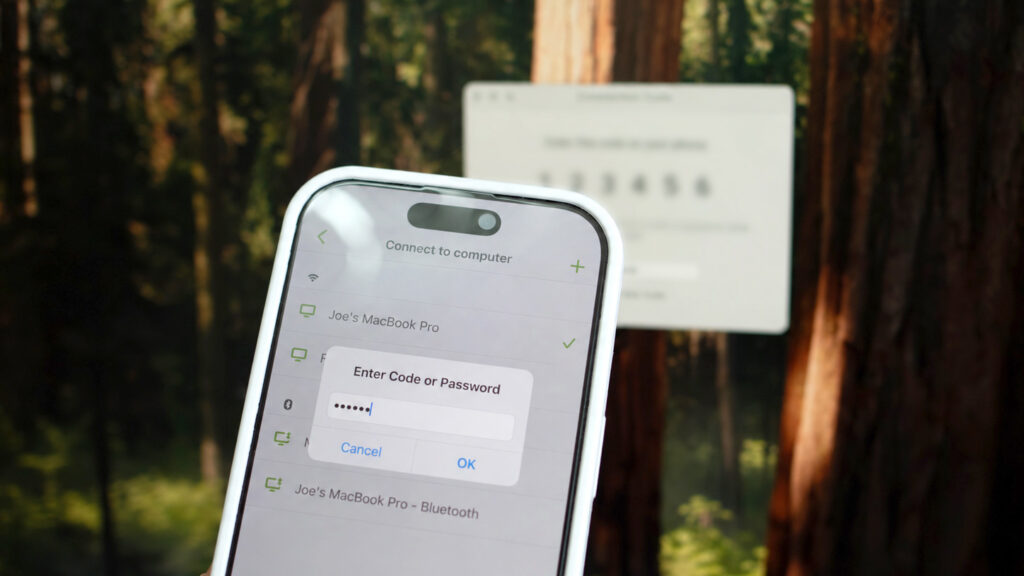
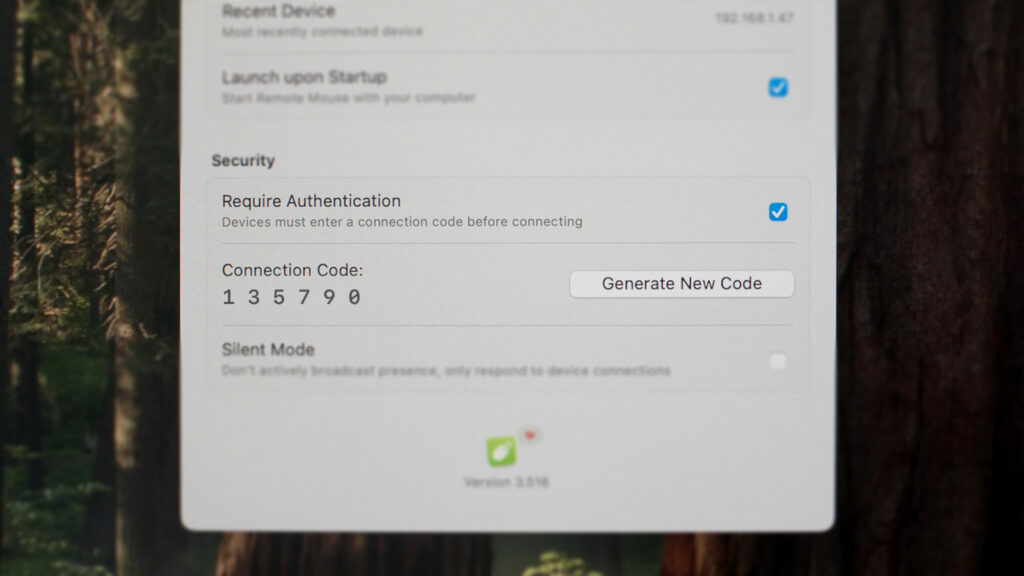
The first time you use the watch app, you need to connect to your computer through the iPhone app. After the initial setup, the watch can connect directly to your computer for everyday use, but make sure your iPhone is still nearby.

Remote Mouse on Apple Watch is designed for those small moments when reaching for your phone or returning to your computer feels like one step too many.

A Simpler Way to Use Remote Mouse Shortcuts

July 23, 2026 in Tips & Tricks, What's New

Shortcuts are meant to be fast. Therefore, we’ve redesigned how they work to make them simpler and more intuitive, with fewer rules to remember.

A simpler way to use shortcuts

Previously, some multi-key shortcuts required long presses to activate each modifier. This is no longer needed, everything now follows the same simple interaction: tap to combine, long press to keep it active.

  • Tap modifier keys (Ctrl, Shift, Alt…) to combine them
  • Tap a regular key (letters, numbers, or keys like Esc and Tab) to execute the shortcut
  • Long press a modifier to keep it active across multiple actions

Works with your keyboard layout

Shortcuts now work with Latin-based keyboard layouts, just like on your computer. No need to switch to an English keyboard. Everything works the way you already expect.

Shortcuts in everyday use

Editing text

When working with text, actions often come in chains:

  • Ctrl + A → Ctrl + C → Ctrl + V

Now, you can simply:

  • Long Press Ctrl, then tap A, C, V

No need to re-activate the modifier each time.

Browsing the web

When navigating between tabs:

  • Hold Ctrl, tap T to open new tabs
  • Tap W to close them

The interaction stays consistent.

Quick access to system controls

Shortcuts also make it faster to trigger common system actions:

On Windows:

  • Win + D → Show desktop
  • Win + Tab → Open Task View
  • Alt + Tab → Switch between apps

On macOS:

  • Cmd + Tab → Switch between apps
  • Cmd + Space → Open Spotlight
  • Ctrl + ↑ → Mission Control

With modifiers staying active, these actions feel immediate and continuous.

Send modifier keys directly

The latest update adds a new Send Modifiers on Tap option in Settings.

By default, tapping a modifier activates it for the next shortcut, while a long press keeps it active across multiple key presses. When Send Modifiers on Tap is enabled:

  • Tap a modifier to send it directly.
  • Long press it once to use it with the next regular key.
  • Long press it twice to keep it active for multiple key presses.

This makes it possible to send keys such as the Windows key by themselves, while still supporting keyboard shortcuts.

Control YouTube, Netflix & More with Media Remote

March 31, 2026 in What's New

Media Remote in Remote Mouse has been quietly upgraded. The interface hasn’t changed, but what it can control has expanded a lot.

Before, it mainly worked with a few desktop apps like VLC, iTunes, and presentation tools like Keynote or PowerPoint. Now, it works across desktop players, browsers, streaming platforms in a much more flexible way.

1. Browser Video

The biggest change is how Media Remote works in the browser. You can now control videos on platforms like:

  • YouTube
  • Netflix
  • Disney+
  • Prime Video
  • Bilibili
  • Twitch

Open any video, and it just works. No extra setup required. Behind the scenes, Remote Mouse detects the active video player, automatically focuses it, and sends the right control commands.

2. Desktop Media

Local apps are still the most stable scenario, and they remain supported. Common players include:

  • VLC
  • IINA
  • Spotify
  • iTunes
  • Infuse

Playback, pause, and volume control are handled directly, responsiveness is consistent and predictable.

3. Presentations

Presentation support for Keynote and PowerPoint remains unchanged. You can move between slides and toggle black or white screen when needed.

4. Volume Buttons

Your phone’s volume buttons can act as controls, depending on what you’re doing, they can:

  • Adjust system volume
  • Move slides forward/backward

This is one small feature but surprisingly useful. No need to look down at your phone, you can operate it entirely by touch, similar to using a physical remote.

Tools follow usage patterns over time. Media consumption has largely moved into the browser, not just streaming, but also live content and short videos. This update is simply a response to that shift. But it’s still only a step.

New Year, New Remote Mouse Desktop Helper 🎉

January 1, 2026 in What's New

Hello there,

How are you welcoming the New Year on your side of the world?

Are you counting down in the streets 🎆, hiking somewhere quiet 🥾, sharing a meal with friends 🍽️, or simply staying home with family?

Whether today feels special or just like an ordinary day, I hope this first day of the year finds you relaxed and in good spirits.

A Major Update to Remote Mouse Desktop Helper

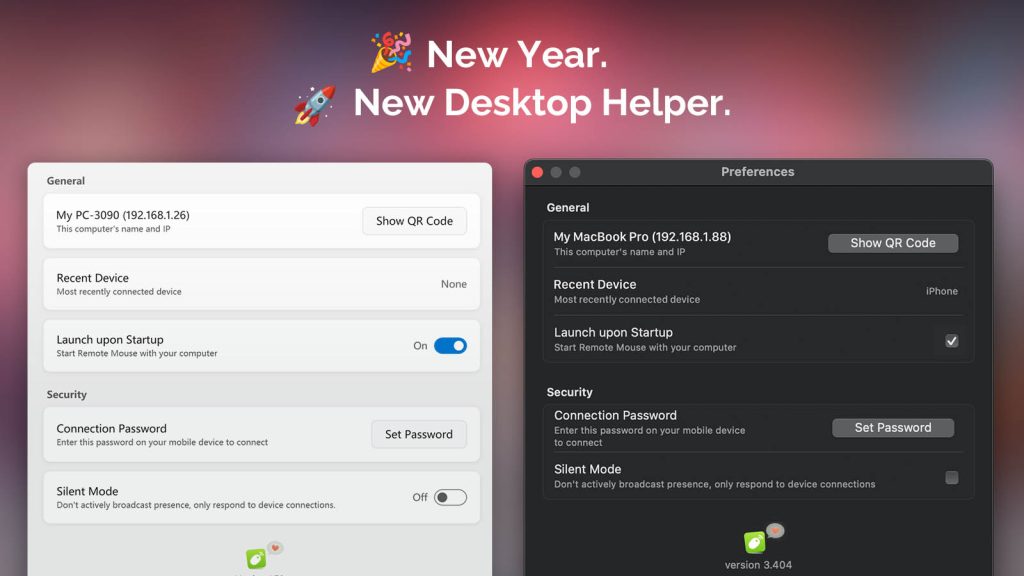
As the year came to a close, Remote Mouse Desktop Helper received a major update for both Windows and macOS:

  • 🧩 A cleaner, more compact UI that makes options easier to find
  • 🎨 Visual refinements that better match the latest Windows 11 and macOS design trends
  • 🌍 Added multi-language support (with more languages coming soon)
  • ⌨️ Bug fixes that improve keyboard input and overall stability
  • 🔐 A new encryption mechanism for better security and reliability

Moving Forward, Together

The world is changing at an incredible pace, and Remote Mouse needs to evolve faster and smarter to keep supporting your daily workflow.

Thank you for being here. I hope we continue this journey together in the new year.

👉 Download the latest Remote Mouse Desktop Helper here.

Yao, Developer of Remote Mouse
Madrid · January 1, 2026

Remote Mouse and macOS Permissions: Why They’re Needed and How to Enable Them

December 9, 2025 in Troubleshooting

1. Why macOS Keeps Asking for Permissions

Starting with macOS Mojave, Apple began taking a very cautious approach to apps that can control your computer. Remote-control tools like Remote Mouse that can move the cursor, type, or trigger system actions now require explicit user permission to function.

2. What Remote Mouse Actually Needs and Why

Accessibility

Accessibility allows apps to perform input-related actions on your Mac.

Remote Mouse needs it for:

  • Move the cursor
  • Perform clicks and gestures
  • Type text from your phone or tablet
  • Trigger shortcuts or UI interactions

Automation → System Events

Automation lets an app perform certain system-level actions through macOS’s built-in service called System Events.

Remote Mouse needs it for:

  • Certain OS-level shortcuts
  • Media keys or playback controls
Continue reading »

Remote Mouse Now Supports Dark Mode on iPhone and Android

December 8, 2025 in What's New

iPhone and Android devices showing Remote Mouse switching between Light Mode and Dark Mode.

We’re launching Dark Mode for Remote Mouse on both iPhone and Android. The app now adapts to your device’s appearance settings or follows your preferred theme manually.

Dark Mode reduces glare in low-light environments, improves readability, and keeps the UI comfortable on any screen. In SettingsGeneralAppearance, you can choose:

  • System Default
  • Light Mode
  • Dark Mode
Continue reading »

Copy & Paste Between Phone and Computer Without Limits

February 22, 2023 in What's New

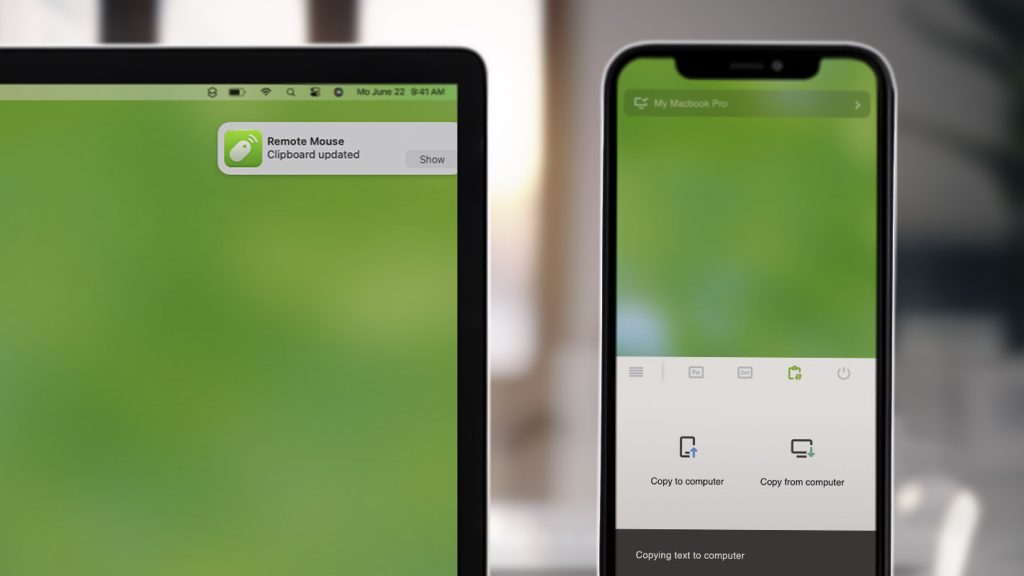
Apple introduced Universal Clipboard in 2016 (as part of iOS 10 and macOS Sierra), making it possible to copy and paste content seamlessly between Apple devices like Mac, iPhone, and iPad.

Now, Remote Mouse brings this experience even further.

With the new Cross-Device Copy & Paste feature (sometimes called Clipboard Sync), you can copy and paste text or images effortlessly between your computer and your phone. And unlike system-level solutions, Remote Mouse breaks platform boundaries:

  • Copy from Android and paste to Mac
  • Copy from Windows PC and paste to iPhone or iPad
  • Copy from phone to computer, or the other way around

No ecosystem lock-in. Just copy and paste.

Continue reading »

Remote Mouse for Steam Deck! Meow 😺

February 2, 2023 in What's New

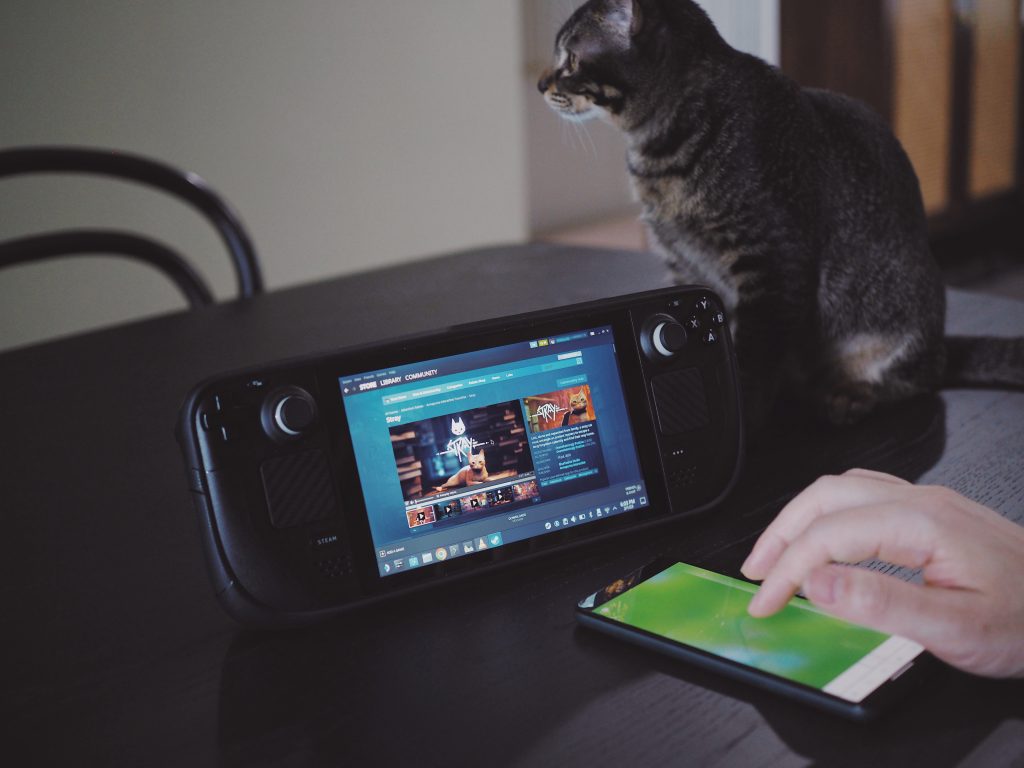
When Steam Deck was released, it quickly stood out as more than just a handheld gaming device. With its vast game library, cross-platform compatibility, and full Linux desktop mode, Steam Deck can also function as a portable computer.

However, using Desktop Mode with the built-in controls is not always ideal. While the joysticks and trackpads are powerful for gaming, they can feel awkward and limiting when navigating desktop interfaces, selecting text, or performing precise mouse actions.

That’s where Remote Mouse comes in.

Continue reading »

New Linux Version Released

December 14, 2022 in What's New

We’ve spent many hours reworking the Linux version of Remote Mouse to bring it to a more stable and usable state.

This release is currently compatible with Ubuntu 18 through 22. While support is limited to these versions for now, we’re continuing to improve compatibility and are working toward supporting more devices, including Steam Deck, in the future.

This new Linux version introduces a set of foundational improvements, including:

  • A refined user interface
  • Improved performance
  • Better compatibility across supported devices
Continue reading »