

Your iPhone can already control your computer with Remote Mouse. But sometimes your phone is charging, sitting across the room, or simply inconvenient to reach. Remote Mouse on Apple Watch gives you a few useful controls right from your wrist.
What You Can Do
Control Media and Presentations
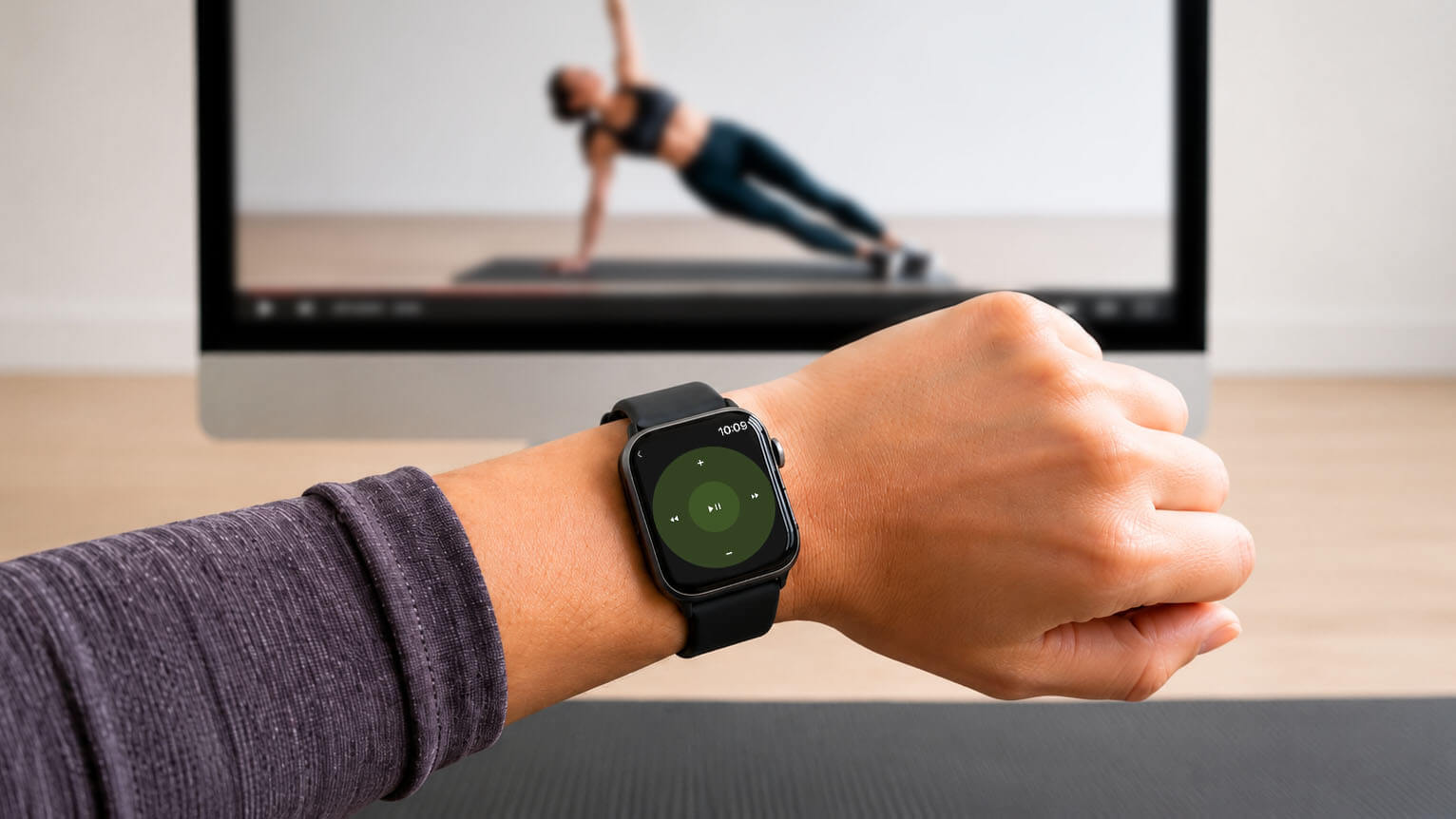
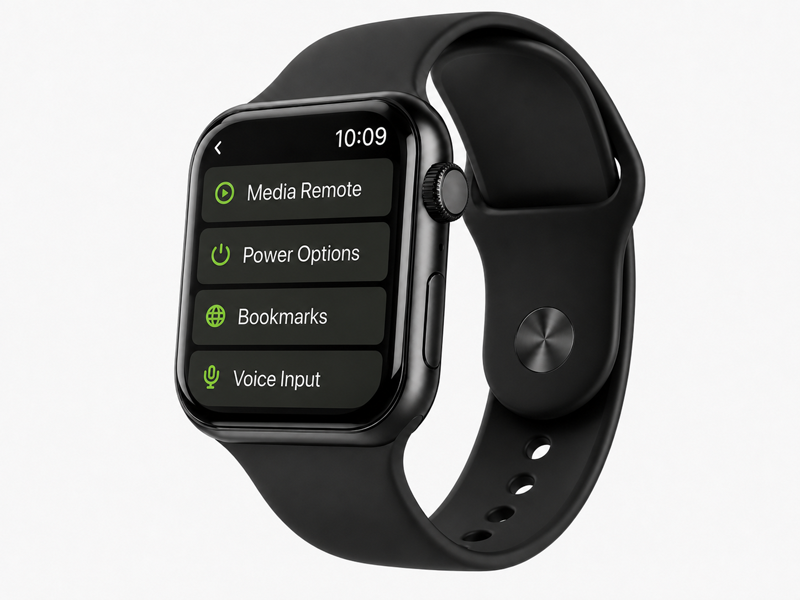
The Media Remote lets you pause or resume playback, skip forward or back, and adjust the volume on your computer. It can also handle the basic controls needed for many presentations, so you may not need a separate presentation remote.
Open Saved Websites
Browser Bookmarks let you open a website on your computer directly from your Apple Watch.
First, add the websites you use often to the bookmarks in Web Remote on your iPhone. You can then open a workout video, recipe, playlist, presentation page, tutorial, or any other saved website from your watch with a tap.
Shut Down Your Computer
You can also shut down your computer remotely. This is especially convenient when you are about to leave, have already moved away from your desk, or are in bed and do not want to get up again.
When It Comes in Handy
During a Workout
This is one of my own most common uses.
When I follow a workout video at home, I sometimes fall behind or need a moment to catch my breath. Instead of walking back to the computer or looking for my phone, I can pause the video from my wrist, replay the movement, and continue when I am ready.
It is a small convenience, but when you are exercising or moving around frequently, a compact remote on your wrist can be much quicker and easier to use than your phone.
When Your Hands Are Busy
The watch remote is also useful when you are cooking, cleaning, doing crafts, or working on a repair project. You might be following a recipe or tutorial, or simply listening to music or a podcast. When you need to pause, replay a step, or continue, the controls are already on your wrist. You do not need to stop what you are doing and walk back to the computer.
When You Are Away from the Computer
During a presentation, you can move through slides or control a video while standing away from your computer.
At a party or family gathering, you can control music and videos while moving around the room instead of carrying your phone everywhere.
The Apple Watch does not replace the full Remote Mouse app, but it works well for quick controls when you are not sitting at your desk.
A Few Extra Options
Remote Mouse also supports voice and handwriting input on Apple Watch. It is best suited to short searches, a few words, or a quick command rather than long text.
The first time you use the watch app, you need to connect to your computer through the iPhone app. After the initial setup, the watch can connect directly to your computer for everyday use, but make sure your iPhone is still nearby.
Remote Mouse on Apple Watch is designed for those small moments when reaching for your phone or returning to your computer feels like one step too many.